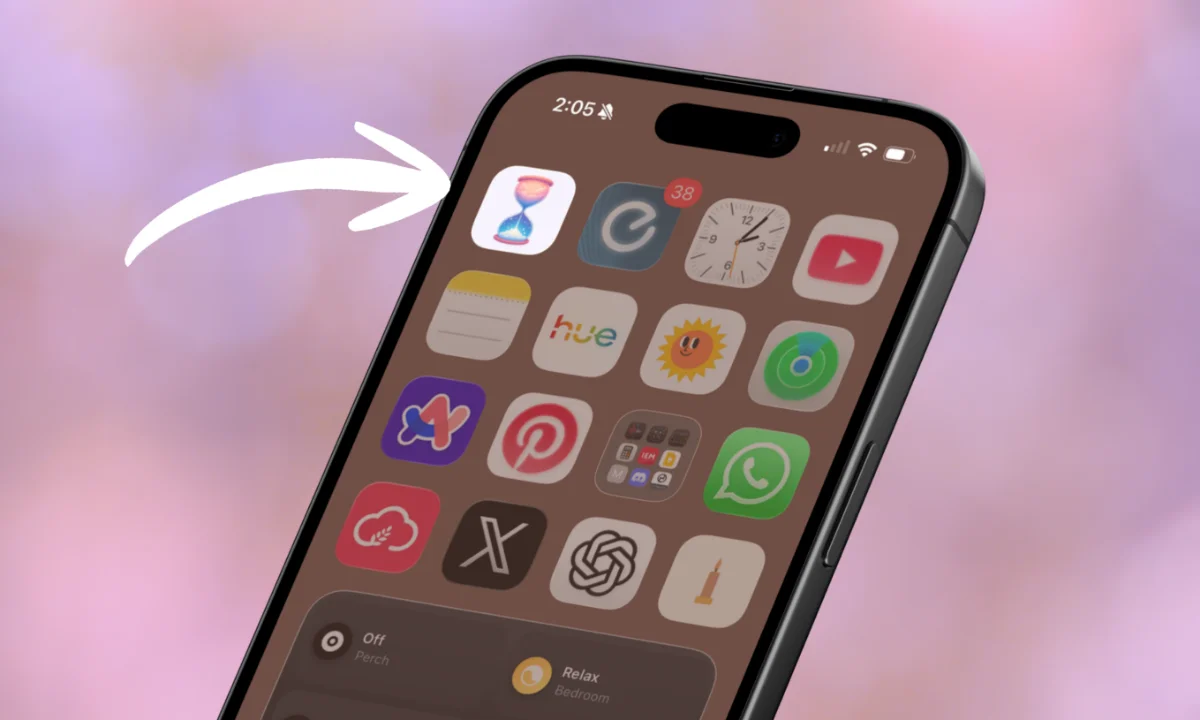
Adding Habit to your home screen makes it easier to open. You tap the icon like any other app, and Habit loads in a clean, distraction-free view.
This works because Habit is a web app. It runs in your browser, but a home screen shortcut removes the address bar and browser tabs.
iPhone and iPad (Safari)
Apple only lets you add web shortcuts through Safari.
- Open Safari and go to habit.am.
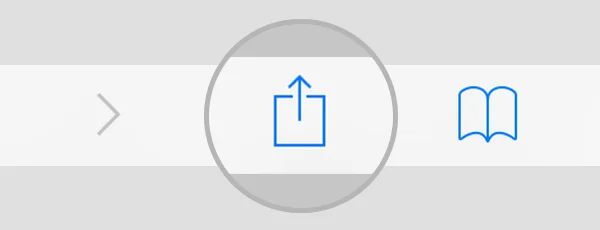
- Tap the Share button (the square with an arrow) at the bottom of the screen.
- Scroll down and tap Add to Home Screen.
- Check that the name says Habit, then tap Add in the top-right corner.
Android (Chrome)
Chrome gives you the simplest setup.
- Open Chrome and go to habit.am.
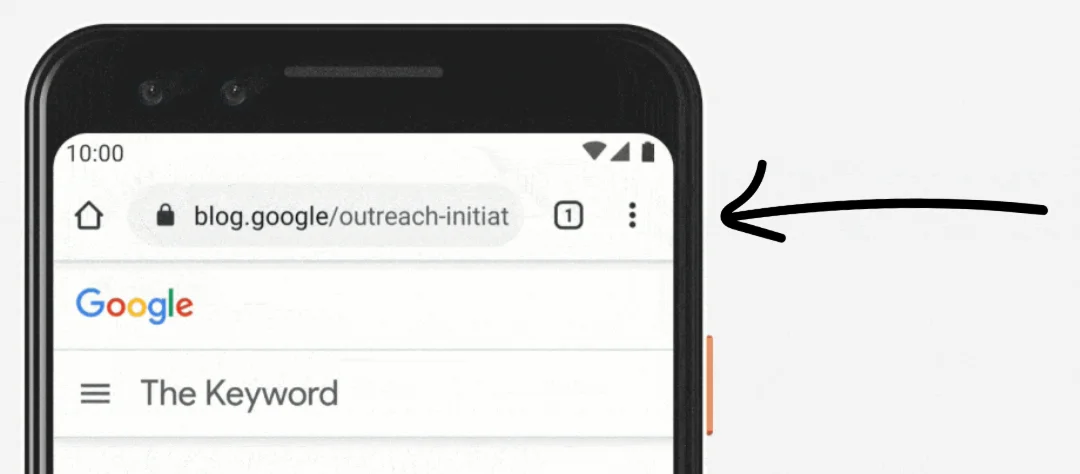
- Tap the three dots in the top-right corner.
- Tap Add to Home Screen.
- Confirm the name and tap Add.
Why this helps
A home screen shortcut does three things:
- One-tap access. You skip typing the URL or searching through tabs.
- Fewer distractions. The shortcut hides the browser chrome, so you land straight in your check-in.
- A visual cue. The icon reminds you to check in when you scroll past it.
Troubleshooting
- "Add to Home Screen" is missing on iPhone. Make sure you're using Safari, not Chrome or another browser. Apple restricts this option to Safari.
- The shortcut opens in a browser tab. Some Android phones open shortcuts in Chrome instead of a standalone window. Restart your phone after adding the shortcut, or remove it and add it again.
- You keep getting logged out. Check that your browser isn't blocking cookies. Staying logged in requires cookies for habit.am.
 Habit
Habit